AWS Marketplace
Components
Using Stained Glass Transform for LLM Inference requires two key components:
- Stained Glass Proxy (SGT Proxy): OpenAI SDK-compatible API that protects your plaintext prompts before sending to an upstream server. This lives within your sensitive data’s root of trust.
- Stained Glass Inference Server (powered by vLLM): AI Model generation server that accepts protected prompt embeddings. This lives where shared compute is most accessible.
The ability to use sensitive data with managed compute is key to scaling enterprise AI in production.
| Stained Glass Proxy | Stained Glass Inference Server |
|---|---|
| Deployed wherever the boundary of your data’s root of trust is | Deployed wherever shared GPU compute is most accessible |
| Applications connect to it like any OpenAI-compatible API | Powered by vLLM with native prompt embedding support enabled |
| Available via AWS Marketplace Container Products | Available via AWS Marketplace Container products, Machine Learning products, Sagemaker Jumpstart, or Bedrock Marketplace |
Listing Options
There are four different listing options available on AWS:
-
Container product: Bundle of Stained Glass Proxy and Stained Glass Inference Server docker containers and a Helm chart for deploying them in EKS. Stained Glass Transform for your target model is included in Stained Glass Proxy container.
-
Machine Learning product: Stained Glass Inference Server preconfigured to run your target model using your existing Sagemaker infrastructure.
-
Sagemaker Jumpstart: Stained Glass Inference Server preconfigured to run your target model using Sagemaker infrastructure templates.
-
Bedrock Marketplace: Stained Glass Inference Server preconfigured to run your target model on managed infrastructure.
Both components (Stained Glass Proxy and Stained Glass Inference Server) are required. For EKS, the Container product provides both components. For a managed inference deployment, subscribe to the Container product for Stained Glass Proxy and to one of the Machine Learning product, SageMaker JumpStart, or Bedrock Marketplace listings for the target model. See other deployment guides for options to deploy Stained Glass Proxy outside of AWS.
See the sections below for subscribing and launching both Stained Glass Proxy and Stained Glass Inference Server.
Marketplace Listings Matrix
This matrix shows the available listings for each target model.
| Model | Helm Chart (including Proxy) | ML Listing (SageMaker) | Sagemaker Jumpstart | Bedrock Marketplace |
|---|---|---|---|---|
meta-llama/Llama-3.1-8B-Instruct |
Stained Glass Transform for Llama-3.1-8B-Instruct | Llama-3.1-8B-Instruct with Stained Glass Transform Support (AWS Marketplace) | Llama-3.1-8B-Instruct with Stained Glass Transform Support (Sagemaker Jumpstart) | Llama-3.1-8B-Instruct with Stained Glass Transform Support (Bedrock) |
NVIDIA/Nemotron-3-Super-120B |
Stained Glass Transform for Nemotron-3-Super-120B | Nvidia Nemotron-3-Super-120B-FP8 Stained Glass Enabled (AWS Marketplace) | Nvidia Nemotron-3-Super-120B-FP8 Stained Glass Enabled (Sagemaker Jumpstart) |
Stained Glass Inference Server (powered by vLLM)
Subscribe to Stained Glass Inference Server
Select the tab below for the listing type for which you want to subscribe to the Stained Glass Inference Server, for your target model.
For more details in launching a Helm Fulfillment Container Product from AWS Marketplace, see the AWS Marketplace documentation.
- Sign in to AWS Marketplace.
- Navigate to the Helm Chart product page from the Marketplace Listings Matrix above.
- Click the "Continue to Subscribe" button.
- Review the pricing and terms, and click the "Create Contract" button.
- Click the "Continue to Configuration" button.
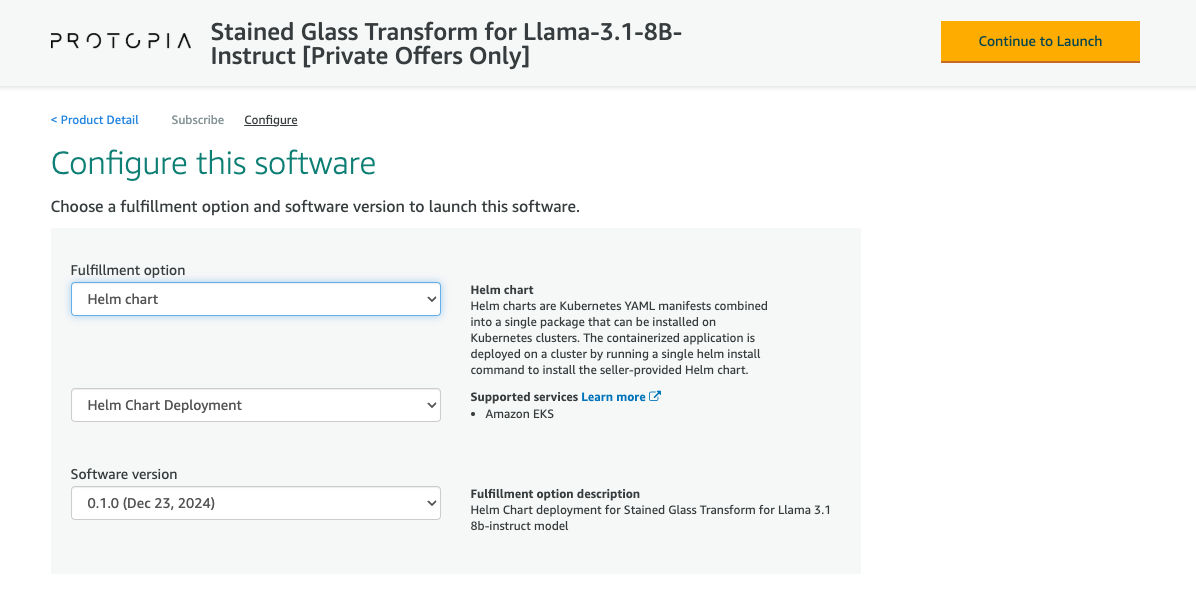
- In the "Fulfillment option" dropdown, select "Helm chart".
- Select the most recent version of the product.
- Click the "Continue to Launch" button.
For more details in subscribing to a Machine Learning product from AWS Marketplace, see the AWS Marketplace documentation.
- Sign in to AWS Marketplace.
- Navigate to the ML Listing (Sagemaker) Marketplace product page from the Marketplace Listings Matrix above.
- Click the "Continue to Subscribe" button.
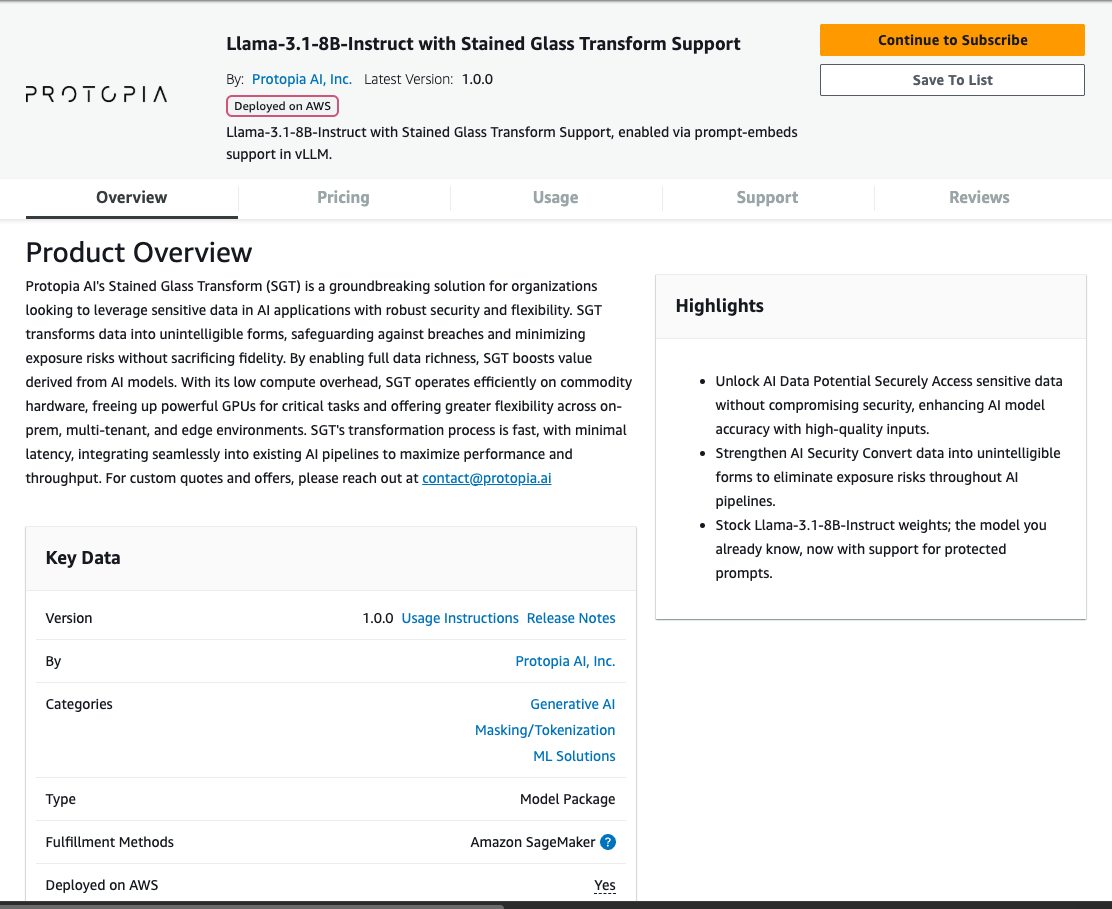
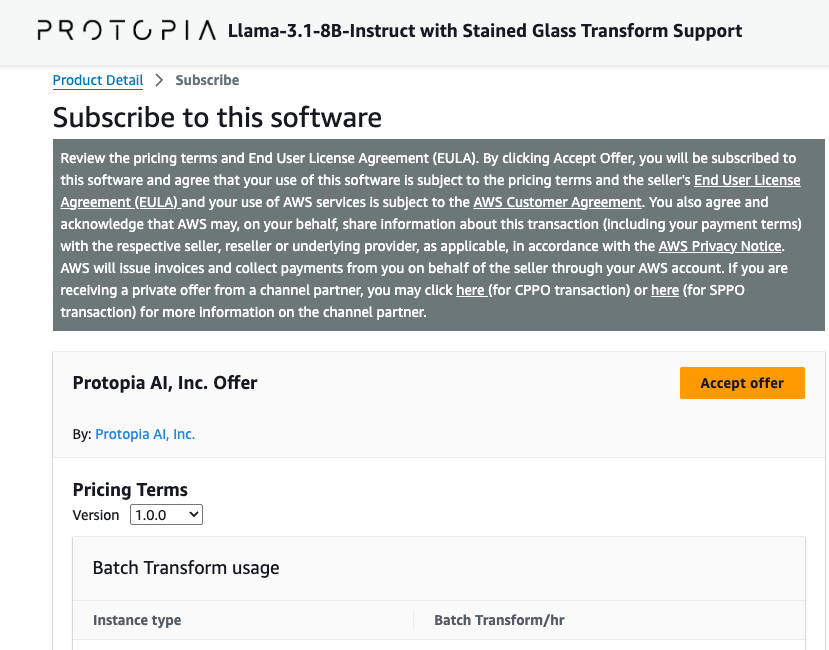
- Click the "Accept offer" button.
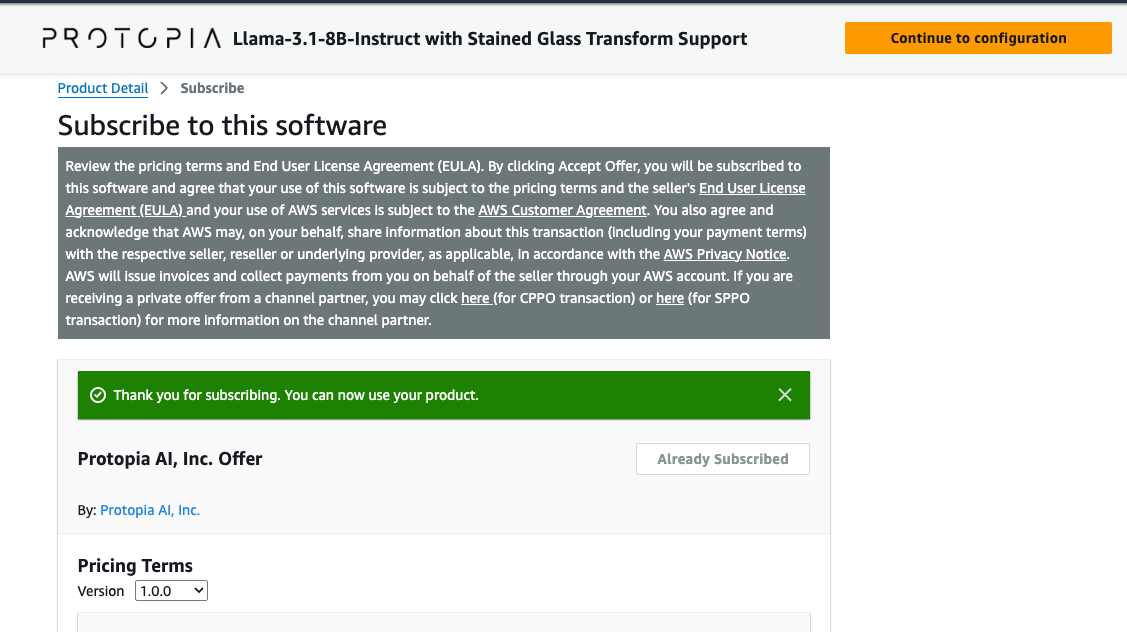
- Do not yet click the "Continue to Configuration" button. We will do so in the deployment instructions below.
For more details in subscribing to a Sagemaker Jumpstart product from AWS Marketplace, see the Sagemaker Jumpstart documentation.
Similarity to ML Listing (SageMaker)
Subscribing to a Sagemaker Jumpstart product is done by subscribing to the corresponding ML Product listing. These instructions are the same as the instructions for subscribing to the ML Listing (SageMaker) tab.
- Sign in to AWS Marketplace.
- Navigate to the ML Listing (Sagemaker) Marketplace product page from the Marketplace Listings Matrix above.
- Click the "Continue to Subscribe" button.
- Click the "Accept offer" button.
- Do not yet click the "Continue to Configuration" button. We will do so in the deployment instructions below.
For more details in subscribing to a Bedrock Marketplace product, see the Bedrock documentation.
- Sign in to AWS Marketplace.
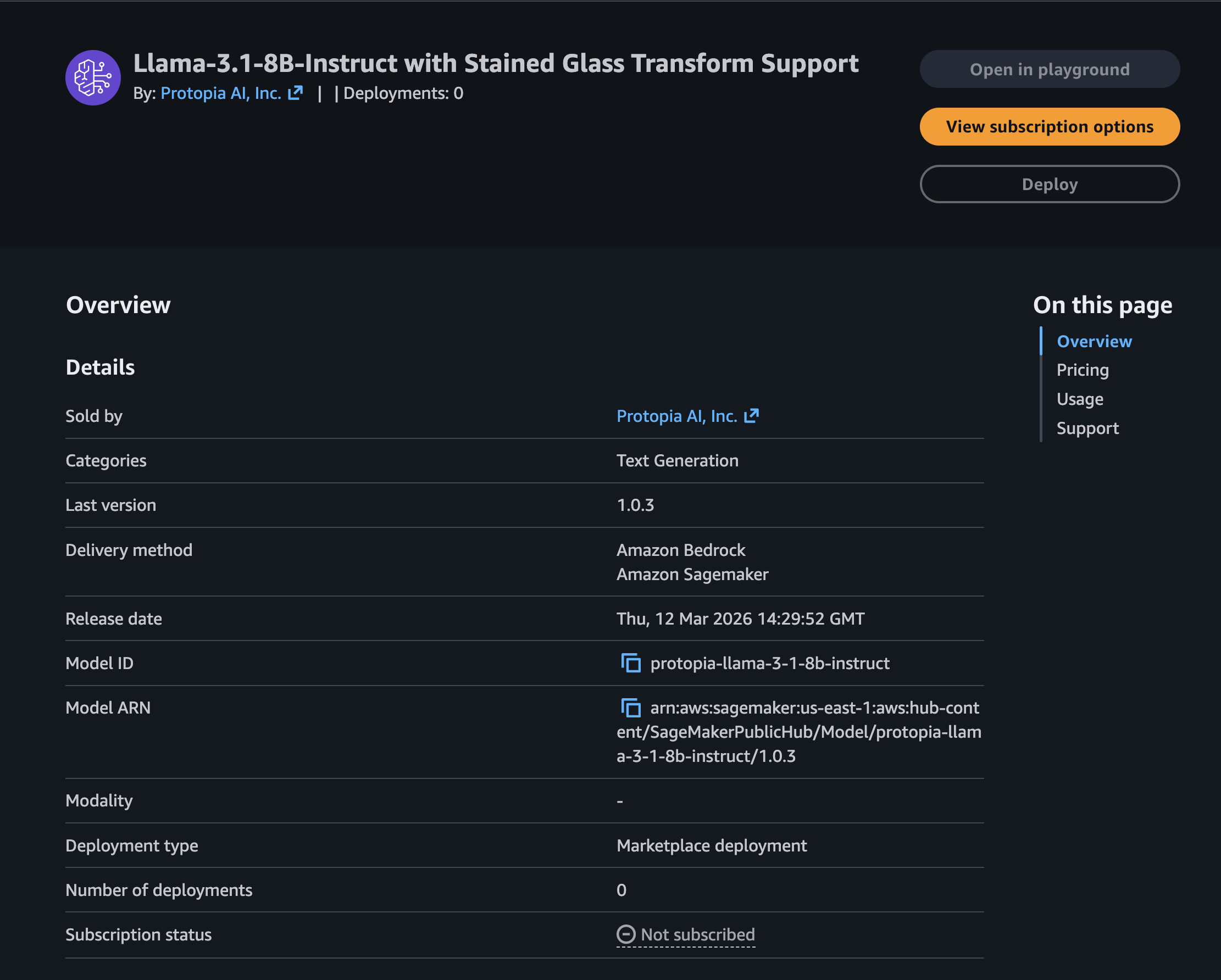
- Navigate to the Bedrock Marketplace product page from the Marketplace Listings Matrix above.
- Click the "View subscription options" button.
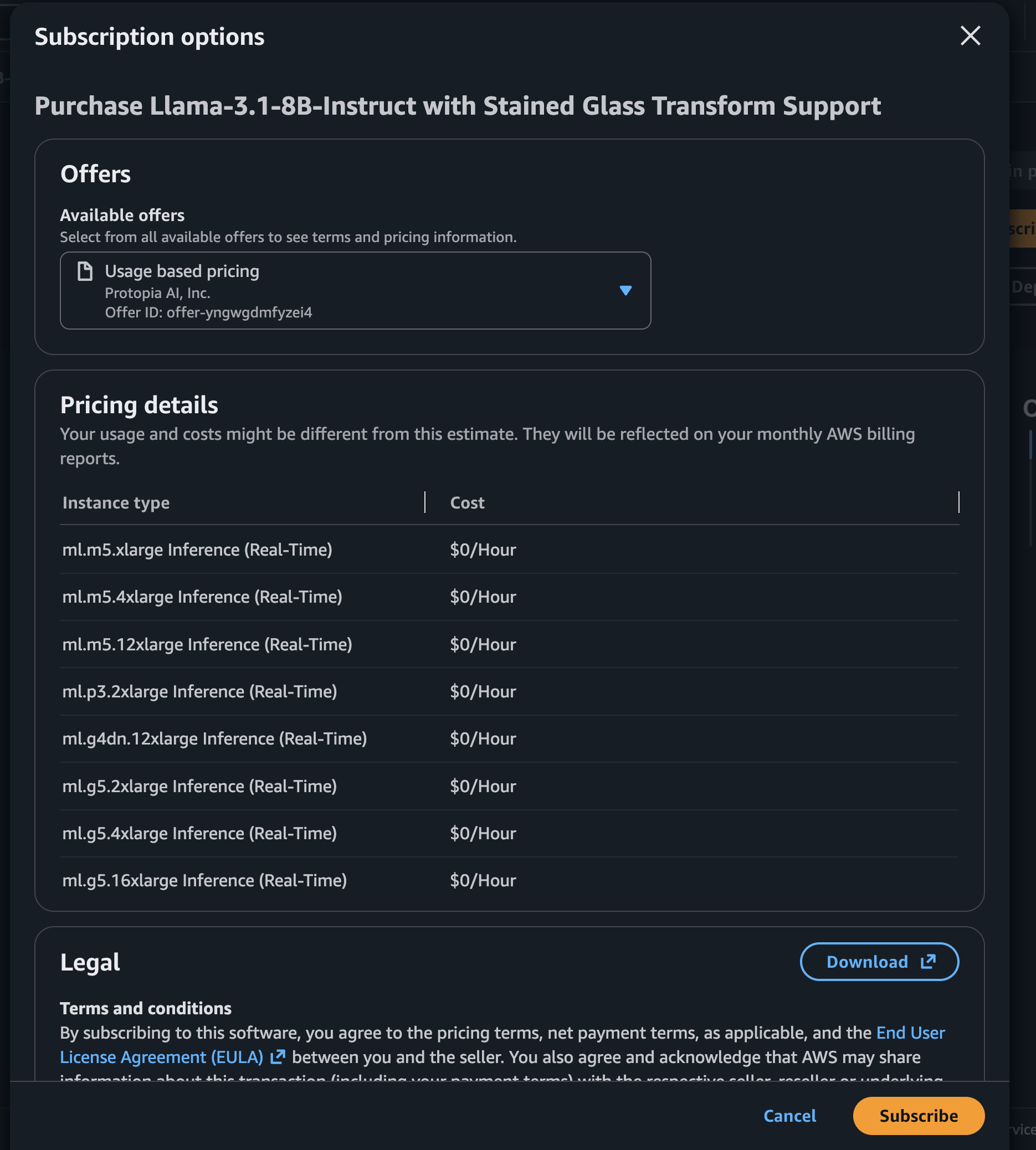
- Click the "Subscribe" button.
- The page will redirect back to the Bedrock Marketplace product page, and you will see a "Subscribed" label on the top right of the page.
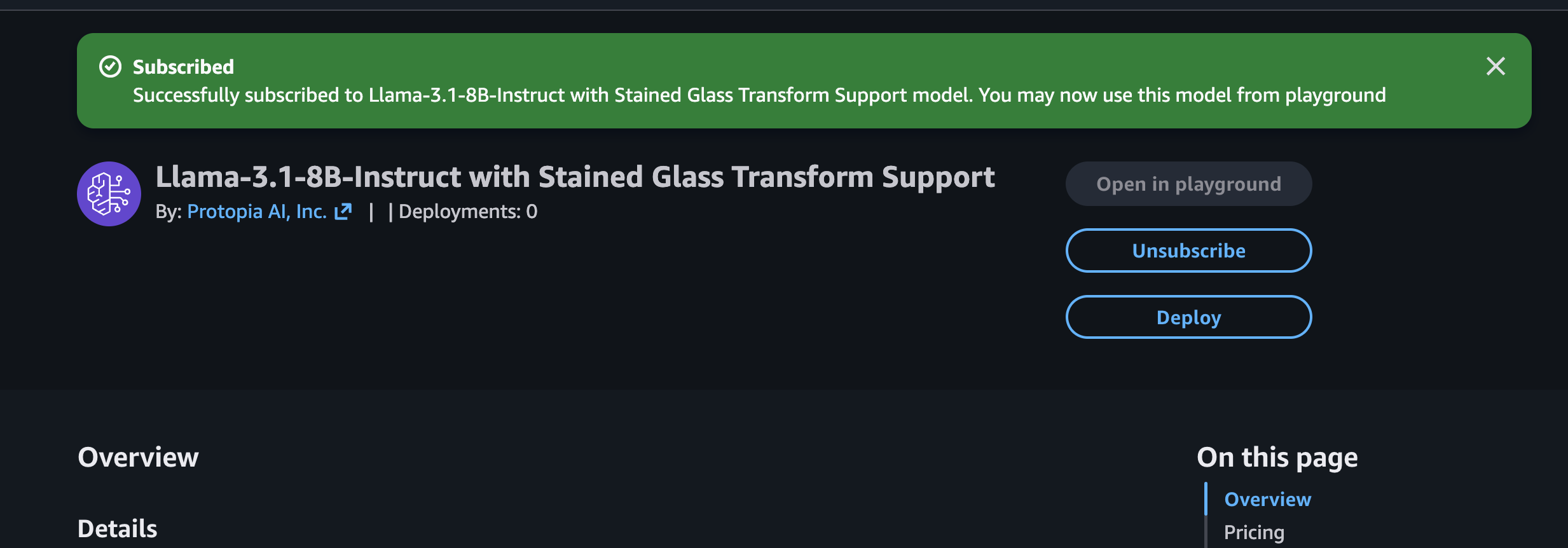
- Do not yet click the "Deploy" button. We will do so in the deployment instructions below.
Deploy Stained Glass Inference Server
Select the tab below for the listing type for which you want to deploy (which you previously subscribed to above).
For more details in launching a Helm Fulfillment Container Product from AWS Marketplace, see the AWS Marketplace documentation.
The Container product listing contains a helm chart that deploys both Stained Glass Proxy and Stained Glass Inference Server in your EKS cluster. Consequently, you do not need to deploy the Stained Glass Inference Server separately. The EKS deployment instructions below in the Stained Glass Proxy section include instructions for enabling the Stained Glass Inference Server in your EKS cluster when using this Container product listing.
Do not use the AWS-provided Deployment Instructions
Upon subscribing AWS provides automatically generated instructions for launching the SageMaker Endpoint using AWS Console, AWS CLI, or CloudFormation. Some users have reported that these automatically generated instructions can result in nonfunctional deployments due to AMI (Amazon Machine Image) incompatibilities with recent versions of vLLM. We recommend using the steps below to avoid these issues.
For more details in subscribing to a Machine Learning product from AWS Marketplace, see the AWS Marketplace documentation.
This guide assumes that you have completed the steps in the Subscribe to Stained Glass Inference Server section, and are currently on the page in the AWS Marketplace with a button "Continue to Configuration" on the top.
- Click the "Continue to Configuration" button.
- Use the guide on GitHub to launch the SageMaker Endpoint.
a. You may need to change the
MARKETPLACE_MODEL_PACKAGE_ARNto match the model package ARN shown on the AWS Marketplace configuration page. - Note the endpoint name and AWS region used for deployment. The endpoint name is the
MODEL_NAMEvariable in the provided Jupyter notebook/guide.
The endpoint name and AWS region will need to be set in Stained Glass Transform Proxy later.
Similarity with ML Listing (SageMaker)
Although the subscription process for the Sagemaker Jumpstart product is identical to that of the ML Listing (Sagemaker) product, the deployment process is different.
This guide assumes that you have completed the steps in the Subscribe to Stained Glass Inference Server section, and are currently on the page in the AWS Marketplace with a button "Continue to Configuration" on the top.
- Navigate to the Sagemaker Jumpstart product page from the Marketplace Listings Matrix above.
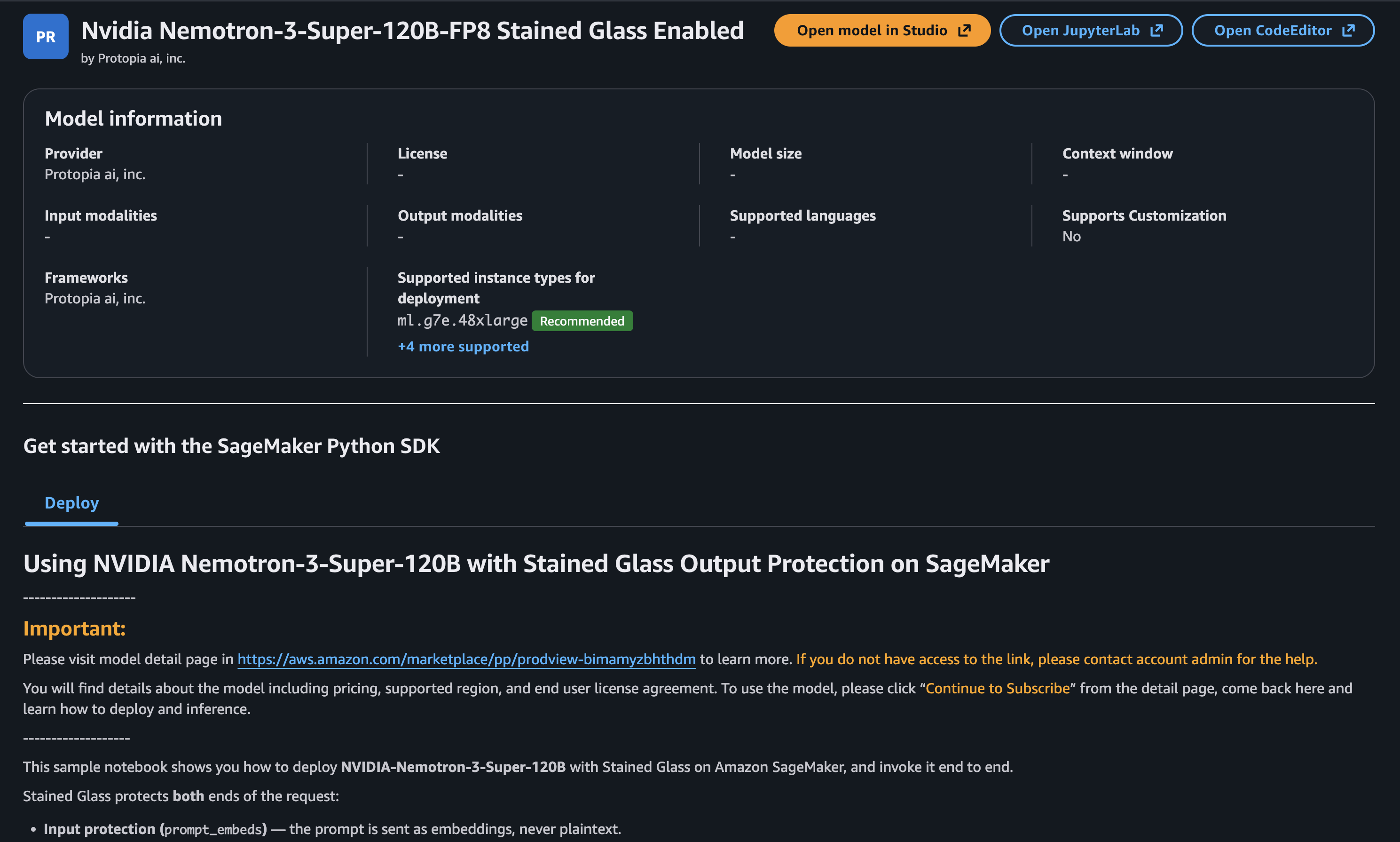
- Follow the instructions in the Sagemaker Jumpstart product page to deploy the model.
- Note the endpoint name and AWS region used for deployment.
The endpoint name and AWS region will need to be set in Stained Glass Transform Proxy later.
This guide assumes that you have completed the steps in the Subscribe to Stained Glass Inference Server section, and are currently on the Bedrock Marketplace page, and already subscribed, with a button "Deploy" on the top.
- Click the "Deploy" button to deploy the model.
- In the deploy pane that appears, configure the deployment options for your model, and click the "Deploy" button.
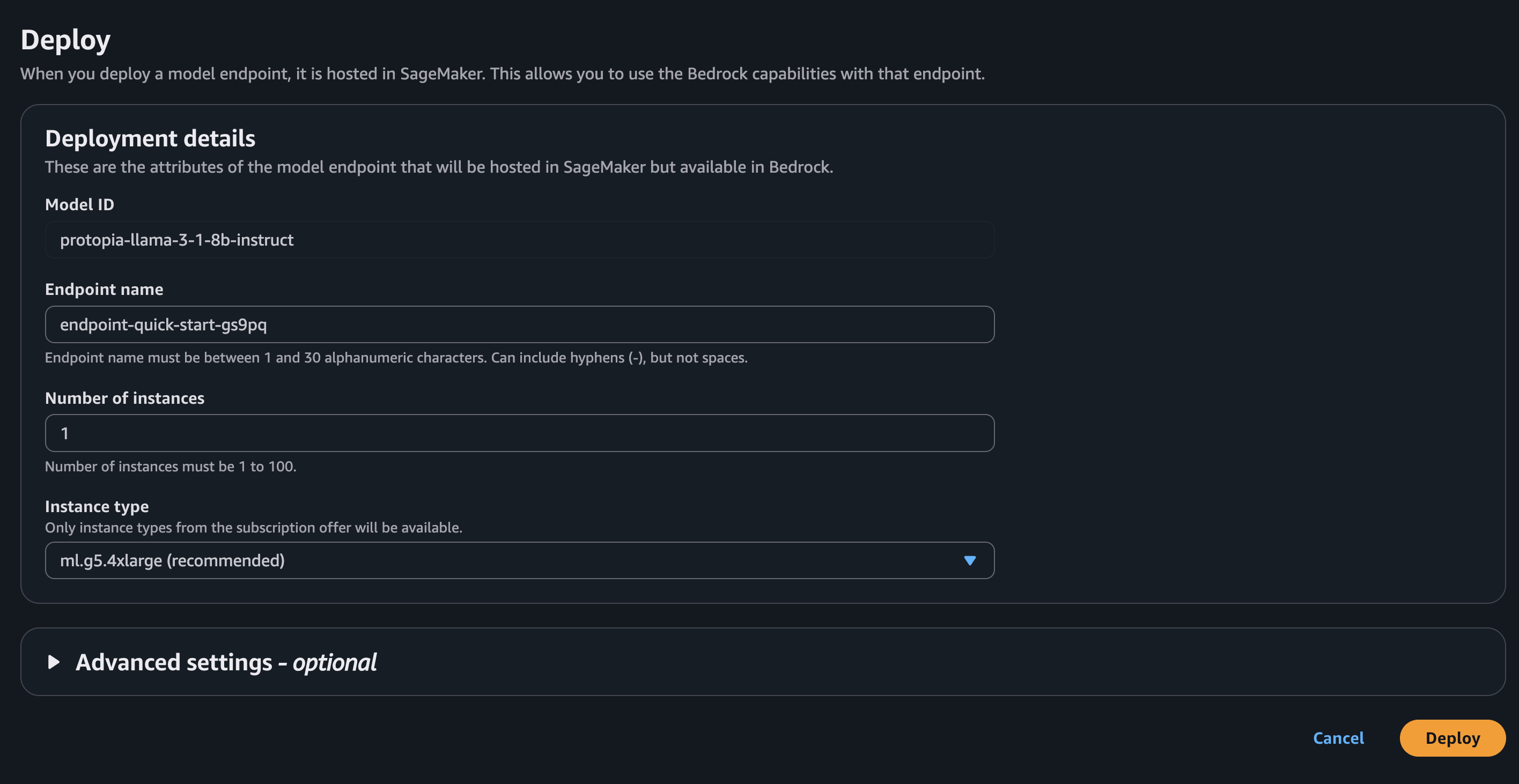
- Note the endpoint name and AWS region used for deployment.
The endpoint name and AWS region will need to be set in Stained Glass Transform Proxy later.
If deploying Stained Glass Inference Server outside of AWS, follow the instructions in the corresponding deployment guide for your deployment location.
Stained Glass Proxy (SGT Proxy)
Subscribe to Stained Glass Proxy on AWS Marketplace
For more details in launching a Helm Fulfillment Container Product from AWS Marketplace, see the AWS Marketplace documentation.
- Sign in to AWS Marketplace.
- Navigate to the Helm Chart product page from the Marketplace Listings Matrix above.
- Click the "Continue to Subscribe" button.
- Review the pricing and terms, and click the "Create Contract" button.
- Click the "Continue to Configuration" button.
- In the "Fulfillment option" dropdown, select "Helm chart".
- Select the most recent version of the product.
- Click the "Continue to Launch" button.
- Follow the Deploy Stained Glass Proxy on Amazon Elastic Kubernetes Service (EKS) instructions below.
Deploy Stained Glass Proxy on Amazon Elastic Kubernetes Service (EKS)
Requirements
Amazon Elastic Kubernetes Service (EKS) Cluster
Prior to following this guide, you should have an EKS cluster set up and configured. If you do not have an EKS cluster, you can follow the Amazon EKS Getting Started Guide.
IAM Role for AWS License Manager
This guide assumes that you have an AWS Account with necessary permissions to subscribe to offerings in the AWS Marketplace, execute a helm chart on your EKS cluster, and that your EKS cluster has the necessary permissions to interact with AWS License Manager.
Depending on what deployment option you are using for the Stained Glass Inference Server, you may need to add additional permissions to the IAM policy. For example, if you are using Sagemaker Jumpstart or Bedrock, you may need to add additional permissions to the IAM policy to allow your EKS cluster to interact with those services.
Select the tab below corresponding to your deployment option for an example IAM policy.
No additional permissions are required for the EKS deployment option, as the Stained Glass Inference Server is deployed within the same EKS cluster as the Stained Glass Proxy.
{
    "Version": "2012-10-17",
    "Statement": [
        {
        "Sid": "VisualEditor0",
        "Effect": "Allow",
        "Action": [
            "license-manager:ListLicenses",
            "license-manager:GetLicense",
            "license-manager:CheckoutLicense",
            "license-manager:CheckInLicense",
            "license-manager:ExtendLicenseConsumption",
            "kms:GetPublicKey"
        ],
        "Resource": "*"
        }
    ]
}
This product, when used with a SageMaker Endpoint as its upstream inference server, requires permissions to the SageMaker endpoint. Make sure your IAM policy allows that. It must be able to InvokeEndpoint and InvokeEndpointWithResponseStream.
{
"Version": "2012-10-17",
"Statement": [
    {
    "Sid": "LicenseManager",
    "Effect": "Allow",
    "Action": [
        "license-manager:ListReceivedLicenses",
        "license-manager:GetLicense",
        "license-manager:CheckoutLicense",
        "license-manager:CheckInLicense",
        "license-manager:ExtendLicenseConsumption",
        "kms:GetPublicKey"
    ],
    "Resource": "*"
    },
    {
    "Sid": "InvokeOnlyThisSageMakerEndpoint",
    "Effect": "Allow",
    "Action": [
        "sagemaker:InvokeEndpoint",
        "sagemaker:InvokeEndpointWithResponseStream"
    ],
    "Resource": "arn:aws:sagemaker:<AWS_REGION>:<AWS_ACCOUNT_ID>:endpoint/<SAGEMAKER_ENDPOINT_NAME>"
    }
]
}
Similarity with ML Listing (SageMaker)
The IAM policy for Sagemaker Jumpstart deployments should be similar to the IAM policy for ML Listing (SageMaker) deployments, as both deployment options require permissions to the SageMaker endpoint. Make sure your IAM policy allows that. It must be able to InvokeEndpoint and InvokeEndpointWithResponseStream. The deployment guide on the Sagemaker Jumpstart product page should provide the necessary permissions for your IAM policy.
{
"Version": "2012-10-17",
"Statement": [
    {
    "Sid": "LicenseManager",
    "Effect": "Allow",
    "Action": [
        "license-manager:ListReceivedLicenses",
        "license-manager:GetLicense",
        "license-manager:CheckoutLicense",
        "license-manager:CheckInLicense",
        "license-manager:ExtendLicenseConsumption",
        "kms:GetPublicKey"
    ],
    "Resource": "*"
    },
    {
    "Sid": "InvokeOnlyThisSageMakerEndpoint",
    "Effect": "Allow",
    "Action": [
        "sagemaker:InvokeEndpoint",
        "sagemaker:InvokeEndpointWithResponseStream"
    ],
    "Resource": "arn:aws:sagemaker:<AWS_REGION>:<AWS_ACCOUNT_ID>:endpoint/<SAGEMAKER_ENDPOINT_NAME>"
    }
]
}
This product, when used with a Bedrock Marketplace Endpoint as its upstream inference server, requires permissions to the Bedrock endpoint. Make sure your IAM policy allows that. It must be able to InvokeEndpoint and InvokeEndpointWithResponseStream.
{
"Version": "2012-10-17",
"Statement": [
    {
    "Sid": "LicenseManager",
    "Effect": "Allow",
    "Action": [
        "license-manager:ListReceivedLicenses",
        "license-manager:GetLicense",
        "license-manager:CheckoutLicense",
        "license-manager:CheckInLicense",
        "license-manager:ExtendLicenseConsumption",
        "kms:GetPublicKey"
    ],
    "Resource": "*"
    },
    {
    "Sid": "InvokeOnlyThisBedrockEndpoint",
    "Effect": "Allow",
    "Action": [
        "bedrock:InvokeModel",
        "bedrock:InvokeModelWithResponseStream"
    ],
    "Resource": "arn:aws:bedrock:<AWS_REGION>:<AWS_ACCOUNT_ID>:endpoint/<BEDROCK_ENDPOINT_NAME>"
    }
]
}
Warning
This product uses AWS License Manager to manage licensing, and an ongoing connection to AWS License Manager is required for the product to function. The product will not function if the connection to AWS License Manager is lost.
Service Account for EKS Cluster
Once you have created the IAM role for AWS License Manager, you will need to create a Kubernetes service account in your EKS cluster that is associated with that IAM role. This service account will be used by the Stained Glass Proxy deployment to interact with AWS License Manager.
eksctl create iamserviceaccount \
  --cluster <EKS_CLUSTER_NAME> \
  --region <AWS_REGION> \
  --namespace <K8S_NAMESPACE> \
  --name <SERVICE_ACCOUNT_NAME> \
  --role-name sgt-proxy-license-manager \
  --attach-policy-arn arn:aws:iam::<AWS_ACCOUNT_ID>:policy/sgt-proxy-license-manager \
  --approve \
  --override-existing-serviceaccounts
Deploy Helm Chart
IAM Roles and Service Accounts
The IAM role and Kubernetes service account were created in a previous section of this guide. You will likely be able to skip any automatically-generated, AWS-provided instructions for creating an IAM role/Kubernetes Service account when following the directions below.
This guide assumes that you have completed the steps in the Subscribe to Stained Glass Proxy on AWS Marketplace section, and are currently on the "Launch this software" page in the AWS Marketplace.
- Under the "Launch target" dropdown, select "Amazon managed Kubernetes".
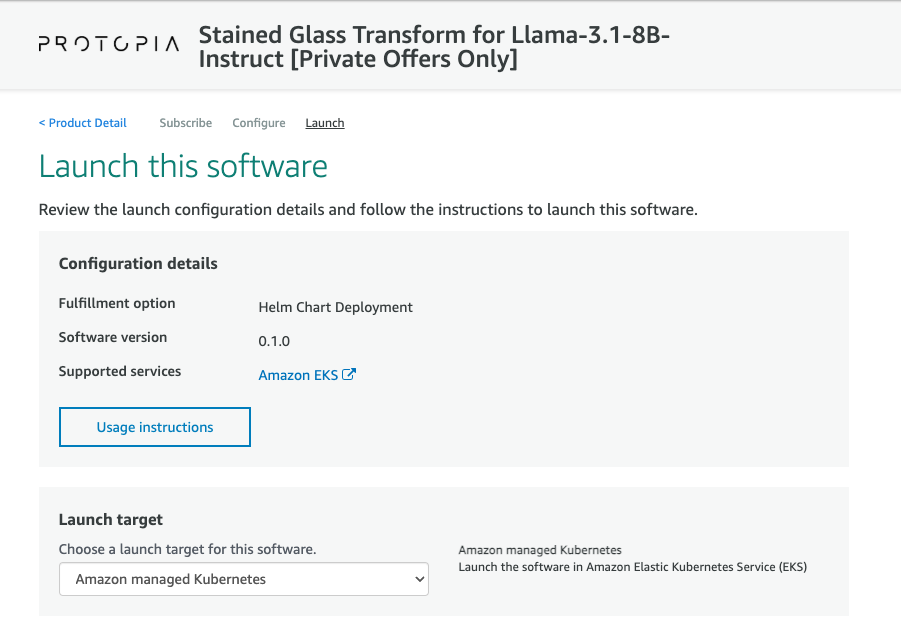
- Under "Launch method", select "Launch on existing cluster".
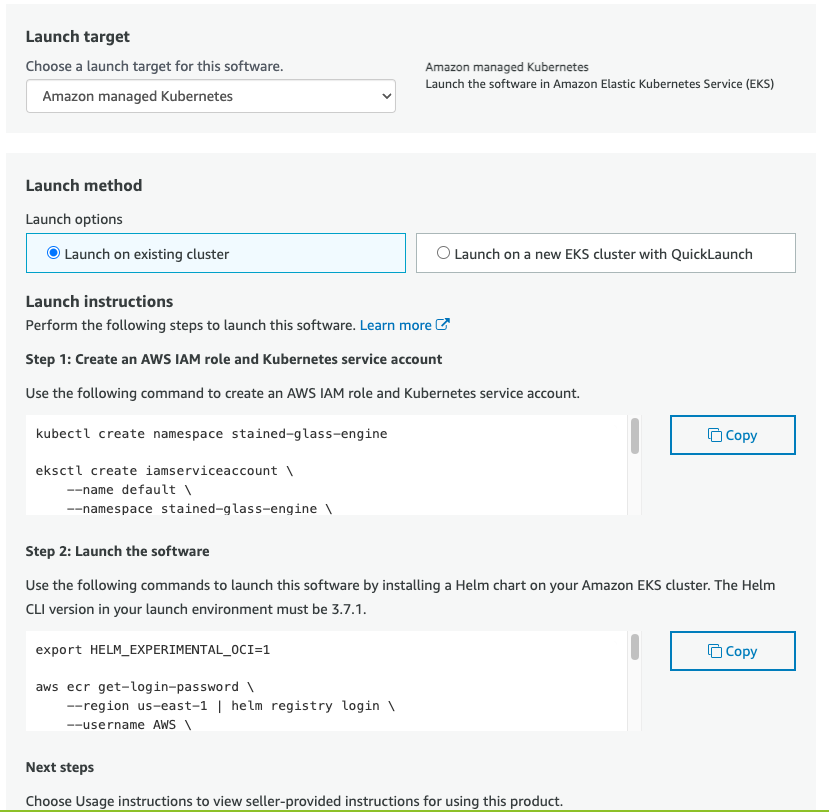
- Follow the Launch instructions given to create the AWS IAM role and Kubernetes service account.
- Follow the Launch instructions given to pull the helm chart and deploy it to your EKS cluster using your local CLI.
There may be additional specific instructions for your deployment option, to ensure that the Stained Glass Proxy is able to communicate with your Stained Glass Inference Server. See the sections below for additional instructions for each deployment option.
Because this is the same Helm Chart and Container product that will be used to deploy Stained Glass Proxy, you will not need to deploy the Stained Glass Inference Server separately. Follow the instructions below to deploy Stained Glass Proxy on EKS with a few adjustments:
- Set
--set llmApi.enabled=Trueto enable the Stained Glass Inference Server in your EKS cluster. - The weights for the target model are not included in the Stained Glass Inference Server container image when installed via Helm. Those weights will be downloaded from Hugging Face Hub. Some models require a Hugging Face Hub API token to download the weights, and that that token be exposed (Set
--set llmApi.secrets.HF_TOKEN=<your Hugging Face Hub API token>). This is only required for models that are gated on the HF Hub.
Hugging Face Hub API Token
You will need a Hugging Face Hub API token to download the model weights for the Llama 3.1 8B model. For directions on how to obtain a Hugging Face Hub API token, see the Hugging Face Hub documentation for Authentication and User Access Tokens.
After obtaining your Hugging Face Hub API token, you must request access to the Llama 3.1 8B model from the Hugging Face Hub model card. Go to the model page on the Hugging Face Hub and click the "Request access" button. Once you have been granted access to the model, you can use your Hugging Face Hub API token to download the model weights.
After you have obtained your Hugging Face Hub API token, you can pass it to the helm chart as the value --set llmApi.secrets.HF_TOKEN=<your token>. For example:
helm install stained-glass-engine \
    oci://709825985650.dkr.ecr.us-east-1.amazonaws.com/protopia-ai/stained-glass-engine:0.22.0 \
    --set llmApi.secrets.HF_TOKEN=<your token>
OCI URI
The OCI URI for the helm chart may be different for your listing. Please check the "Launch this software" page in the AWS Marketplace for the correct OCI URI for your listing. This includes the version number of the helm chart, which may be different for your listing.
Alternatively, you can set the HF_TOKEN environment variable using Kubernetes secrets or ConfigMaps. If no HF_TOKEN value is set in helm, the deployment will attempt to use the value of the HF_TOKEN value in Kubernetes secrets.
This is one way to set the HF_TOKEN value in Kubernetes secrets:
- Create the secret: Use the kubectl create secret command to create the secret in Kubernetes.
kubectl create secret generic stained-glass-engine-api-secrets \
    --from-literal=HF_TOKEN=<your-token>
- Verify the secret: Ensure the secret has been created successfully.
By default the helm chart will also launch the Stained Glass Inference Server (powered by vLLM) into your EKS cluster. Since you are using SageMaker as your upstream inference server, this is not necessary. Make sure to add --set llmApi.enabled=False to any helm install commands. This will disable launching a self-hosted inference server. You should also set --set sgProxy.config.sagemakerEndpointName=<your endpoint name> and --set sgProxy.config.sagemakerRegionName=<your region name>, so SGT Proxy will communicate with your SageMaker endpoint For example,
helm install stained-glass-engine \
    oci://709825985650.dkr.ecr.us-east-1.amazonaws.com/protopia-ai/stained-glass-engine:0.22.0 \
    --set llmApi.enabled=False \
    --set sgProxy.config.sagemakerEndpointName=<your endpoint name> \
    --set sgProxy.config.sagemakerRegionName=<your region name>
OCI URI
The OCI URI for the helm chart may be different for your listing. Please check the "Launch this software" page in the AWS Marketplace for the correct OCI URI for your listing. This includes the version number of the helm chart, which may be different for your listing.
Llama 3.1 8B
The ML Listing for Llama 3.1 8B does not include the output protection plugin. This means that neither output decryption nor TurboQuant prompt embedding compression can be enabled. Make sure to set the following values in your helm install command to disable these features:
Similarity to ML Listing (SageMaker)
Connecting to a Sagemaker Jumpstart product is identical to the corresponding ML Product listing. These instructions are the same as the instructions for connecting to the ML Listing (SageMaker) tab.
By default the helm chart will also launch the Stained Glass Inference Server (powered by vLLM) into your EKS cluster. Since you are using SageMaker as your upstream inference server, this is not necessary. Make sure to add --set llmApi.enabled=False to any helm install commands. This will disable launching a self-hosted inference server. You should also set --set sgProxy.config.sagemakerEndpointName=<your endpoint name> and --set sgProxy.config.sagemakerRegionName=<your region name>, so SGT Proxy will communicate with your SageMaker endpoint For example,
helm install stained-glass-engine \
    oci://709825985650.dkr.ecr.us-east-1.amazonaws.com/protopia-ai/stained-glass-engine:0.22.0 \
    --set llmApi.enabled=False \
    --set sgProxy.config.sagemakerEndpointName=<your endpoint name> \
    --set sgProxy.config.sagemakerRegionName=<your region name>
OCI URI
The OCI URI for the helm chart may be different for your listing. Please check the "Launch this software" page in the AWS Marketplace for the correct OCI URI for your listing. This includes the version number of the helm chart, which may be different for your listing.
Llama 3.1 8B
The Sagemaker Jumpstart Listing for Llama 3.1 8B does not include the output protection plugin. This means that neither output decryption nor TurboQuant prompt embedding compression can be enabled. Make sure to set the following values in your helm install command to disable these features:
Similarity to ML Listing (SageMaker)
Connecting to a Sagemaker Jumpstart product is identical to the corresponding ML Product listing. These instructions are the same as the instructions for connecting to the ML Listing (SageMaker) tab.
By default the helm chart will also launch the Stained Glass Inference Server (powered by vLLM) into your EKS cluster. Since you are using SageMaker as your upstream inference server, this is not necessary. Make sure to add --set llmApi.enabled=False to any helm install commands. This will disable launching a self-hosted inference server. You should also set --set sgProxy.config.sagemakerEndpointName=<your endpoint name> and --set sgProxy.config.sagemakerRegionName=<your region name>, so SGT Proxy will communicate with your SageMaker endpoint For example,
helm install stained-glass-engine \
    oci://709825985650.dkr.ecr.us-east-1.amazonaws.com/protopia-ai/stained-glass-engine:0.22.0 \
    --set llmApi.enabled=False \
    --set sgProxy.config.sagemakerEndpointName=<your endpoint name> \
    --set sgProxy.config.sagemakerRegionName=<your region name>
OCI URI
The OCI URI for the helm chart may be different for your listing. Please check the "Launch this software" page in the AWS Marketplace for the correct OCI URI for your listing. This includes the version number of the helm chart, which may be different for your listing.
Llama 3.1 8B
The Bedrock Marketplace listing for Llama 3.1 8B does not include the output protection plugin. This means that neither output decryption nor TurboQuant prompt embedding compression can be enabled. Make sure to set the following values in your helm install command to disable these features:
```bash --set sgProxy.config.text.embedding.compression="none" \ --set sgProxy.config.enableOutputDecryption="false" \
Inference using Stained Glass Proxy
Connecting to Stained Glass Proxy
The Helm Chart deployment supports an ingress controller, if desired, which can be enabled via .Values.sgProxy.ingress.enabled.
The Helm Chart also creates a Kubernetes service for the Stained Glass Proxy, which can be used to connect to the service from within your EKS cluster. The service is created with the name stained-glass-engine-sg-proxy.
You can test your connection using its built-in Swagger UI at the /docs endpoint.
Interacting with the Stained Glass Proxy API
Once you can connect to the Stained Glass Proxy service, you can interact with its REST API to perform inference (see the API Reference for more details). The REST API is OpenAI-compatible, so you can use tools such as OpenAI's client or LangChain to interact with the service. See Tutorials for examples of how to use the service.